China Top Guide How to Recover Deleted Files From USB Drive?
Losing files from a USB drive can feel sudden and unsettling. One moment, a folder is visible. The next, important photos, reports, or project files seem gone. In many cases, deletion does not immediately erase the stored data. However, new files can overwrite it quickly.
This guide explains how to Recover Deleted Files From Usb Drive through careful, practical steps. It covers common causes, including accidental deletion, formatting, file-system errors, and unsafe removal. The guidance applies to Windows and Mac users, with attention to different recovery conditions. Stop using the USB drive immediately. Do not save recovered files back to the same device.
Real recovery work requires patience. A quick scan may find recently deleted documents, while deeper scans can reveal damaged folder structures. Reliable recovery software should show file previews before restoration. Yet no tool can promise success in every situation. If the drive makes clicking sounds, disconnects repeatedly, or becomes unusually hot, professional data recovery may be safer. Physical damage needs specialized equipment and controlled handling.
Small mistakes matter. Continuing to browse the drive can reduce recovery chances. We also recognize that some instructions may not work equally well on every USB model. File systems, storage conditions, and previous usage all affect results. Use this guide as a careful starting point, keep realistic expectations, and create regular backups after recovery.
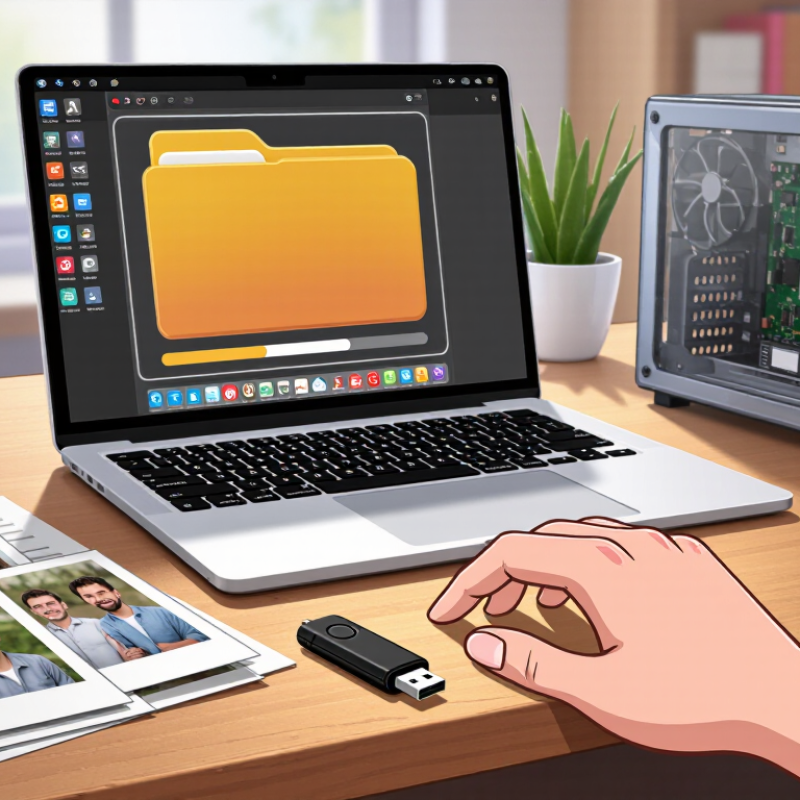
Identify Why Files Disappear From a USB Drive
A USB drive can appear empty even when its data still exists. The cause is often simple: files became hidden, not deleted. Check the drive’s properties and compare used space with visible folders. If several gigabytes remain occupied, hidden files or damaged directory records may be involved. Turn on hidden-item viewing through a trusted computer setting, then inspect unfamiliar folders carefully.
Unsafe removal can interrupt writing and corrupt the file system. A sudden power loss may produce the same result. Some files disappear after moving between devices with different permissions or file systems. Malware can also change file attributes, although it is not the only explanation. In my recovery work, I once blamed corruption too quickly. The real problem was a loose connector causing repeated read errors.
Stop saving new data immediately. Continued use can overwrite recoverable file fragments. Do not format the drive or run repair commands before making a sector-by-sector copy, especially when the drive clicks, disconnects, or shows the wrong capacity. A write-protected copy allows safer examination. Recovery software should scan the copy, preserve original filenames when possible, and show previews before restoration. If the drive becomes unusually hot or unstable, professional laboratory assessment is safer than repeated home attempts. Keep in mind that recovery results are never guaranteed.
Check the Recycle Bin, Hidden Files, and Backup Copies
China Top Guide: How to Recover Deleted Files From USB Drive?
When files disappear from a USB drive, stop using it immediately. New files can overwrite the deleted data. Check the Recycle Bin, but remember that direct USB deletions often bypass it. If the drive was connected during a file move, the deleted item may still appear there. Search by file type and original folder name.
Hidden files can create confusion. Open your file manager, enable hidden items, and inspect the USB drive carefully. A file may be hidden rather than deleted. Check backup copies on your computer, external storage, or synchronized folders. The 2024 Cost of a Data Breach Report placed the global average breach cost at 4.88 million dollars. This figure shows why reliable backup routines matter, even for small offices. Recovery is not guaranteed. That limitation deserves honesty.
Tips: Do not format the drive or run repeated scans. Safely eject it, then create a sector-level copy if possible. Scan the copy, not the original. Review backup dates and file versions carefully. I have seen users overlook an older backup because its folder name looked unhelpful. Recovery software can help, but damaged hardware needs a qualified data-recovery professional. Never save recovered files back to the same USB drive.
Recover Deleted Files with Trusted Data Recovery Software
Recovering deleted files from a USB drive requires quick, careful action. Stop copying files to the drive immediately. New data can overwrite the deleted information, making recovery much harder.
Trusted data recovery software can scan the drive without changing its remaining data. Choose a tool with clear developer information, secure installation, and a read-only scanning option. It should support common file systems and show recoverable files before payment or export. A preview is useful for checking photos, documents, and videos with familiar names. Avoid unknown programs offering unrealistic guarantees. Recovery is never certain.
Connect the USB drive directly to the computer. Select the correct drive, then run a deep scan if a quick scan finds nothing. Save recovered files to another disk, not the original USB drive. I once saved recovered photos back to the same drive and damaged the chances of finding other files. That mistake still matters.
Keep the computer powered during the scan. Large drives may take hours. Do not format the USB drive when the system displays an error message. If the drive disconnects repeatedly, makes unusual sounds, or becomes extremely slow, stop using it. Professional help may be safer than repeated scans. I also recommend testing recovered files individually, because a visible filename does not guarantee a complete file. Some folders may return imperfectly. That is frustrating, but honest recovery software should report damaged results instead of hiding them.
Verify Recovered Files and Safely Restore USB Drive Use
Recovering deleted files from a USB drive is only half the job. Verification matters more than a successful scan result. Save recovered files to another healthy drive, never back to the damaged USB device. A separate destination prevents new data from overwriting deleted content.
Open several files from different folders. Check photos at full size, play videos beyond the first minute, and read documents from beginning to end. A file may open while missing pages or showing gray image blocks. Compare filenames, file sizes, dates, and folder structure with your memory or a previous backup. For important files, create checksums and compare them with known copies. Do not trust appearance alone.
Keep the original USB drive unchanged until every needed file is confirmed. This step is easy to rush. I have learned that one overlooked spreadsheet can matter more than hundreds of recovered pictures. After verification, copy the files to two separate locations. Then scan the USB drive for errors and check its physical condition. If the device disconnects, becomes unusually hot, or reports changing capacity, stop using it.
When the files are secure, reformat the USB drive through a reliable operating system tool. Select a suitable file system and avoid interrupting the process. Test the empty drive by copying a few small files, opening them, and safely ejecting the device. Replace the drive if errors return. A repaired USB drive is not automatically trustworthy.


